Highlighting Text and Taking Notes with the Annotations App
eCFRPlus comes with an embedded app that allows you to annotate your e-documents.
Before you can annotate, you must first open the annotations window andcreate a free account for saving your annotations. Open the annotations slide-out window using the three control buttons that appear at the top right of every regulation and guideline page, as well as this page so you can try it out!
You need to create an annotations account in order to save your notes and highlights. It’s a one-time thing, it’s fast, and it’s free.
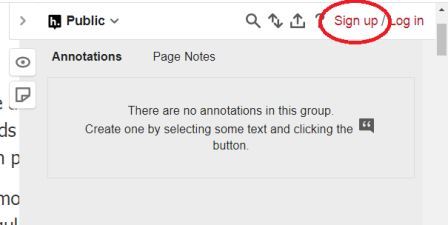
Open the Annotations window using the < arrow at the top right of the screen, click on “Sign-up,” and follow the prompts for creating, activating, and logging-in to your account. You can do this now while on this page.
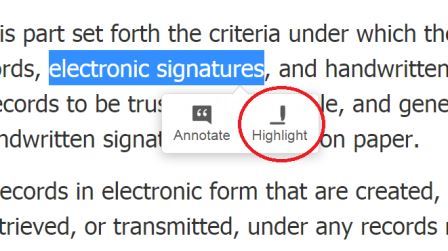
Click and drag over the text you want to highlight and click “Highlight” in the pop-up box that appears. Highlighted text is visible only to you. You can hide your highlights using the button at the top of the page.
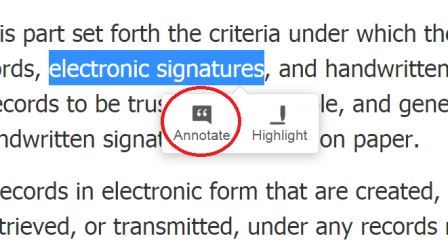
Click and drag over the text that you want to add a note to, and click “Annotate” in the pop-up box that appears. This will open the slide-out Notes window. Enter your note(s) in the space provided. Text formatting options appear above the entry window.
Pop-up appears when text is selected.
IMPORTANT: When you’re finished with your note, you have the option to post it as “Public” or private (“Only Me”) using the drop-down arrow below your note. Although the default setting is “Public,” we advise keeping your notes private so that others cannot see them. You can change the privacy setting at any time. The chosen setting appears at the top of the annotations window. Public notes have a globe icon, and private notes have a padlock icon.
Page notes are notes that are not associated with any specific text on a page. To create a page note, click on the page icon at the top right of the screen and enter a note in the slide-out window. Notice that “Page Notes” is bolded at the top of the window.
You can post Page Notes as “Public” or “Only Me,” and the default is “Public;” but we recommend that you keep your notes private.
Tags, as you probably know, are words or short phrases that categorize information, much like the categories that you would find in a book index. For each annotation or page note that you make, you can create/assign one or more tags to help you find that information when you need to refer to it. Your tags will appear in a box underneath your annotation/note. To see all of your annotations associated with an assigned tag, go to the annotations summary page by clicking on your username at the top of any annotation window.
You can view your saved annotations by clicking on the highlighted text in your document. If you want to view all of the annotations on a page, just open the annotations slide-out window. You can jump from annotation to annotation within a page by clicking on the numbered tabs along the scroll bar while the slide-out window is closed.
To see all of the annotations that you’ve made throughout all pages, click on your user name at the top of any of your annotations. You’ll be taken to a new page that indexes all of your annotations in one place (See screen shot below).
Indexed page of annotations
Information
Part 50: Protection of Human Subjects
Selected Regulations and Guidance for Drug Studies